Admin Settings
Admin users control the dispatch algorithm's behavior from the Dispatch Settings panel — a collapsible section at the top of the Dispatch screen (the Dispatch item in the main navigation). The same screen shows the Shuttles panel and the live Dispatch Queue below the settings. This panel includes the execution toggle and the configurable tuning parameters, and is visible to Admin users only.
Execution Toggle
The primary on/off switch for auto-dispatch. When toggled on:
- New unassigned To Do tickets are automatically enqueued and dispatched
- Shuttle duty changes trigger dispatch cycles
- Ticket completions and deletions trigger re-evaluation
When toggled off:
- No automatic dispatch occurs
- Existing assignments remain in place — already-assigned tickets are untouched
- The dispatch queue is purged — all queued tickets are cleared, and any tickets previously marked unassignable have that flag cleared
- The Dispatch Queue panel renders empty for the entire duration the feature is off
- Dispatch users continue to assign tickets manually as before
Turning off auto-dispatch is treated as a true off-switch, not a pause. Manual assignments by dispatchers during the off period don't have to keep a parallel queue in sync, and dispatchers see an accurate "nothing is being auto-dispatched" view. When you turn the feature back on, the queue is rebuilt fresh from the current state of your work — including any previously stuck tickets, which get a clean retry.
Re-Enabling
When you toggle dispatch back on after it was off:
- The system scans your recent To Do activities (last 30 days) and enqueues every eligible ticket — unassigned, not blocked by a linked predecessor — with a freshly computed urgency score
- Any tickets that were previously marked unassignable get a clean slate and are reconsidered
- A dispatch cycle runs immediately to process the rebuilt queue
This means the system always reflects the current state of your yard at the moment you re-enable — newly created tickets during the off period are picked up, completed tickets are skipped, and previously-unassignable tickets get another chance now that conditions may have changed.
Changing Configuration While Enabled
When you save the dispatch settings while auto-dispatch is already enabled, a dispatch cycle runs immediately so the new weights and limits take effect on currently-queued tickets. Already-assigned tickets are not re-evaluated — only items still in the dispatch queue are affected. This lets you tune the algorithm and see the result without disrupting in-flight work.
Configuration
Adjust these parameters to tune the algorithm for your yard operations. The dispatch algorithm picks the best (ticket, shuttle) pair using five weighted factors — three describing the ticket's urgency, two describing the shuttle's fit. See Dispatch Algorithm for the full math.
Max Retry Attempts
Default: 10
How many dispatch cycles a ticket can fail to match before it's marked unassignable. Lower values flag unassignable tickets faster; higher values give more time for shuttles to become available.
Max Concurrent Tickets per Shuttle
Default: 5
The maximum number of tickets that can be assigned to a single shuttle at once. Once a shuttle reaches this limit, they won't receive new assignments until they complete or have tickets reassigned.
Dispatch Weight Sliders
The five weight percentages below control how much each factor influences which ticket goes to which shuttle. The five values must sum to 100. The UI keeps them in sync — when you move one slider, the others adjust proportionally.
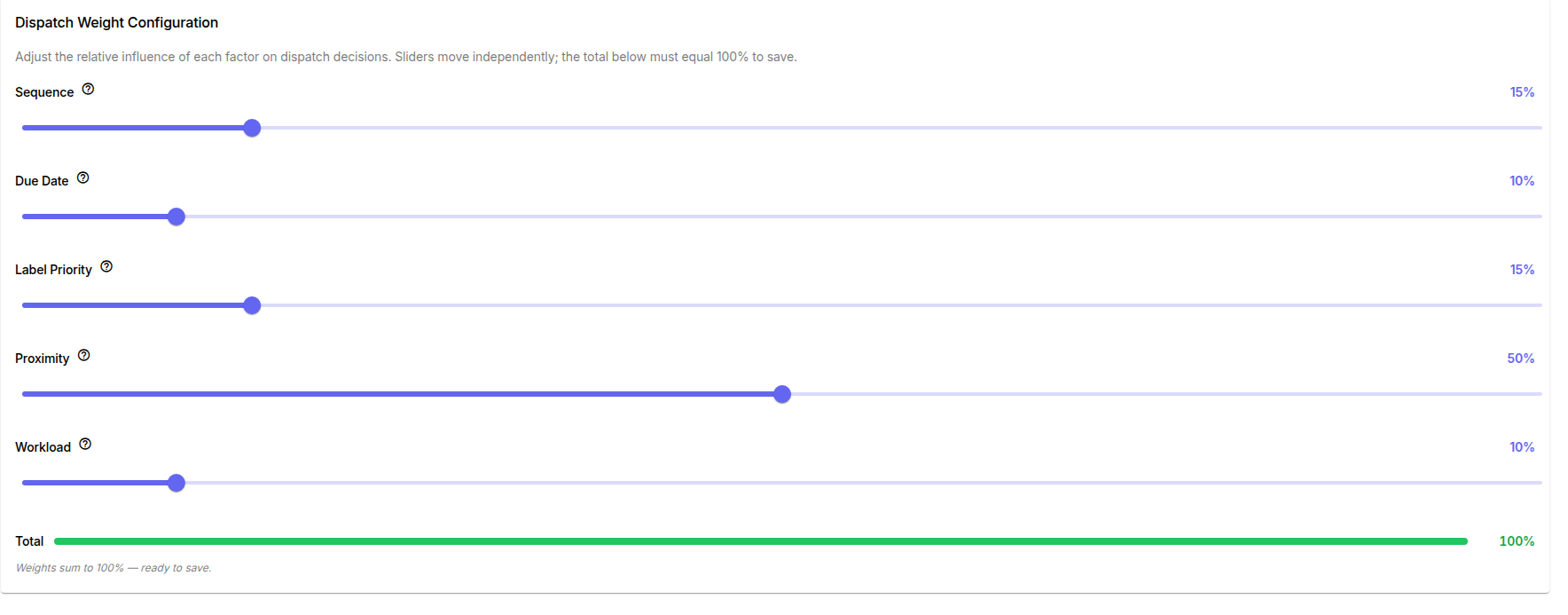
Sequence Weight (%)
Default: 20
How much the dispatcher's manual ordering matters. Raise this if your dispatchers actively curate the work queue order and that ordering should drive dispatch.
Due Date Weight (%)
Default: 25
How much approaching (or past-due) dates push tickets up the queue. Raise this for time-sensitive operations where SLAs are tight.
Label Priority Weight (%)
Default: 15
How much label priority (Critical / High / Normal / Low) matters. Raise this so prioritized labels reliably jump the queue.
Proximity Weight (%)
Default: 25
How much the shuttle's distance from the ticket origin matters. Higher values favor the closest shuttle, reducing travel time between jobs.
Workload Weight (%)
Default: 15
How much the shuttle's current ticket count matters. Higher values spread work more evenly across the fleet, preventing any one shuttle from being overloaded while others idle.
Saving the dispatch settings runs a dispatch cycle automatically — you can change weights or limits and see how they affect the current queue without waiting for the next natural trigger event.
Manual Dispatch Controls
Even with auto-dispatch enabled, Dispatch users can always take control and dispatch tickets. The algorithm will adjust following a manual dispatch action.