Outlines & Facilities
A facility is an area of your yard: a lot, a warehouse, the whole fenced yard. Its outline is the geofence Yard Spot uses to recognize where assets are.
If you already have your geofence, this is the page where you put it in.
Add a Facility by Drawing Its Outline
This is the only way to create a facility. There is no form that creates one by name.
- Make sure the right site is chosen in the Site selector. Use Add site if you have none.
- Choose Draw outline in the tool strip.
- Click the map to add corners around the area.
- Close the outline by clicking the first corner or double-clicking. There is no Finish button.
- A New facility row opens at the top of the tree with the name field selected. Type the name and press Enter or click ✓ Accept. The facility is created and linked to the outline.
If you leave the name empty, press Escape or click ✕ Cancel, the outline is discarded and nothing is saved.
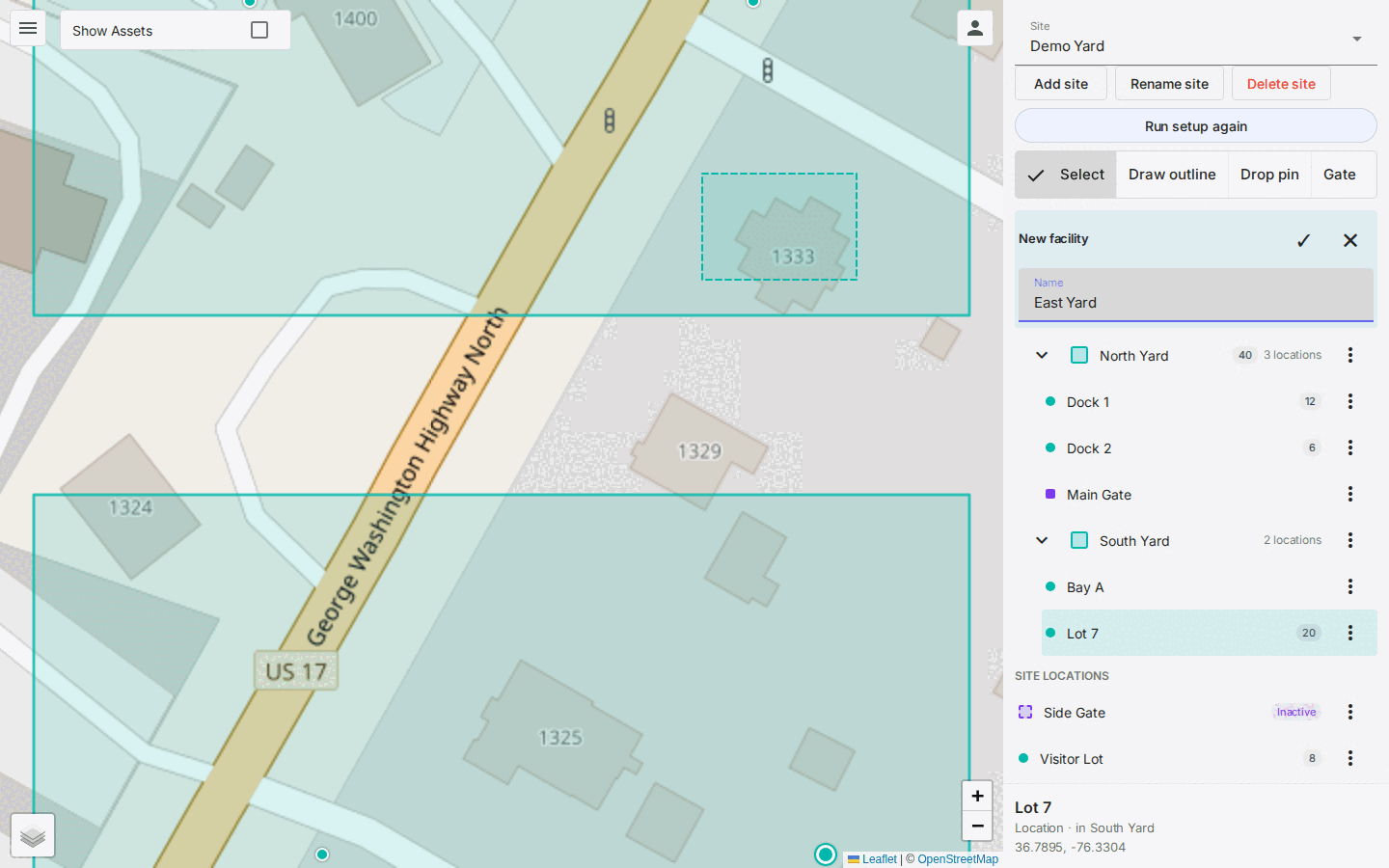
Locations that sit directly under the site and fall inside the new outline are adopted into the new facility, keeping their ids. Yard Spot tells you how many it moved ("Moved 2 locations into North Yard").
If the site already has facilities with no outline, the row also offers New facility and Existing facility. Choose Existing facility and then the facility's name to attach the outline to it instead of creating a new one.
Facility names must be unique within a site. If the name is already used, the row says Name already used and waits for a different one.
Edit an Outline
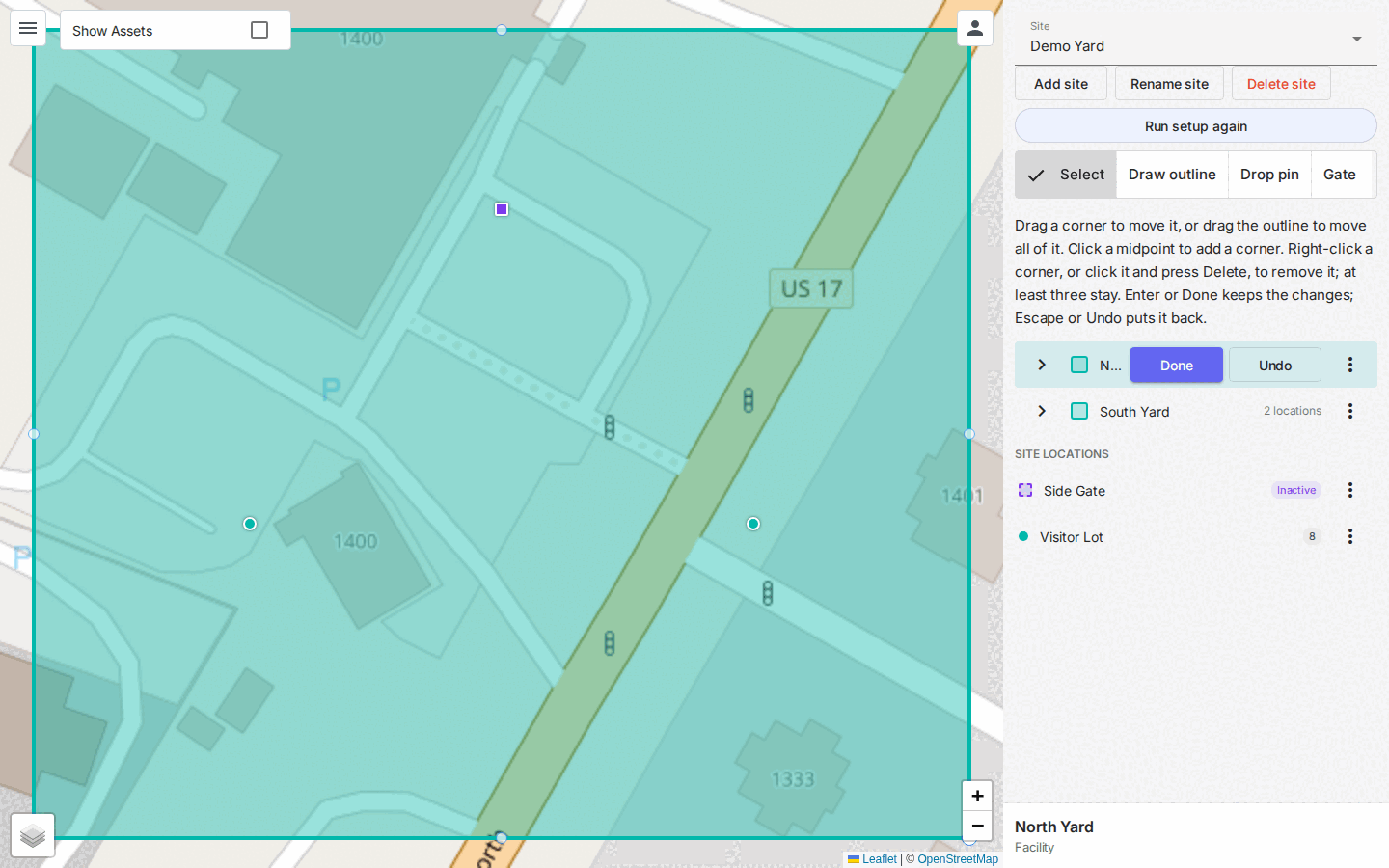
Click a facility, either its name in the tree or its outline on the map. It is selected, the map zooms to the outline and its corners become editable. Done and Undo appear in the facility's row. A facility with no outline is only selected; there is nothing to edit.
There is no Edit outline button and no edit dialog.
| To... | Do this |
|---|---|
| Move a corner | Drag it. |
| Move the whole outline | Drag the outline. |
| Add a corner | Click a midpoint marker on an edge. |
| Remove a corner | Click it (it is highlighted) and press Delete or Backspace, or right-click it. At least three corners always stay. |
| Keep your changes | Done (the primary button) or Enter. |
| Put the outline back as it was before you started | Undo or Escape. |
Nothing is saved until you press Done. Clicking another facility, choosing a tool, or selecting something else cancels the edit in progress. The rest of the panel stays usable while you edit. Enter, Escape, Delete and Backspace are ignored while you are typing in a field or have a menu or dialog open.
A facility that already has several outline parts, for example a front lot and a rear lot, keeps them, and all parts are edited together. There is no Remove this part and no Cut a hole, and you cannot add another part. To remove a facility entirely, delete it.
Editing an outline never moves the facility's locations.
The Landing Point
A landing point is a single point where assets land at this facility, separate from its outline. It is optional, and each facility has at most one.
- Open the facility's ⋯ menu and choose Set landing point.
- Click the map where it should go.
The tree then shows a Landing point row under the facility. To change it later, choose Move landing point from the same menu.
The Facility Menu
Each facility row has a ⋯ menu:
| Item | What it does |
|---|---|
| Edit | Open a form for the facility's Name, Capacity and, when it has a landing point, the landing point's latitude and longitude. This is how you rename a facility; the outline follows the name automatically. |
| Add a location | Start a pin under this facility. See Locations & Pins. |
| Add by coordinates | Add a location by typing latitude and longitude. |
| Set landing point / Move landing point | See above. |
| Draw outline | Draw the facility's outline. Shown only when the facility has none. |
| Delete | Delete the facility and the locations in it. See Deleting. |

Clicking a facility's row selects it and shows it on the map, so there is no Show on map item.
Facilities Without an Outline
Every facility should have an outline. One created before this rule, or whose outline was removed, shows no outline in its tree row and is flagged in the setup checklist. Use Draw outline from its menu to give it one. See Guided Setup & Checklist.
Outlines Not Linked to a Facility
Older outlines were tied to a facility only by a text label. Any outline that is not linked to a facility is listed under a note at the bottom of the tree, such as 2 outlines aren't linked to a facility. Expand it to see each one with these actions:
- Edit label: change the label it carries.
- Edit outline: edit its corners. Done and Undo appear in its row, as for a facility.
- Delete outline
- Show on map
Unlinked outlines keep labeling assets as they always did and are drawn dashed orange on the map. To link one, draw a new outline for the facility, or choose Existing facility when you draw. The setup checklist can also link them.
Facility Capacity
A facility can carry a capacity. Set it with Edit on the facility. Capacity is a whole number of at least 1. Leave it empty when the facility is a whole lot you do not want counted.
In the tree, a row with a capacity shows just the number in a small pill, such as 40. Hover over it to see Capacity: 40. A site has no capacity, so it never shows a pill. See Capacity & Occupancy.