Guided Setup & Checklist
The setup wizard teaches the hierarchy as you build it. It takes you through the same tools described in the other pages, one level at a time, and its checklist finds anything in your existing data that is not yet fully connected.
You can skip it at any time. Everything it does can also be done directly in the editor.
When It Opens
- Automatically, the first time you open the Location Editor when your organization has no facilities yet.
- From the panel, using the button under the site controls:
- Setup checklist · N to fix when N things need attention. It opens on the first step with something to fix.
- Run setup again when nothing needs fixing. It opens at the first step.
Choose Skip to the editor at the top right, from any step, to close the wizard and go back to the full editor. Changes are saved as you make them, so nothing is lost by skipping.
The Four Steps
The steps run across the top: Site, Facilities & outlines, Locations, Gates. Use Continue and Back to move between them, or click a step. Each step also arms the matching map tool for you.
1. Site: "Name your site"
The step explains the three levels:
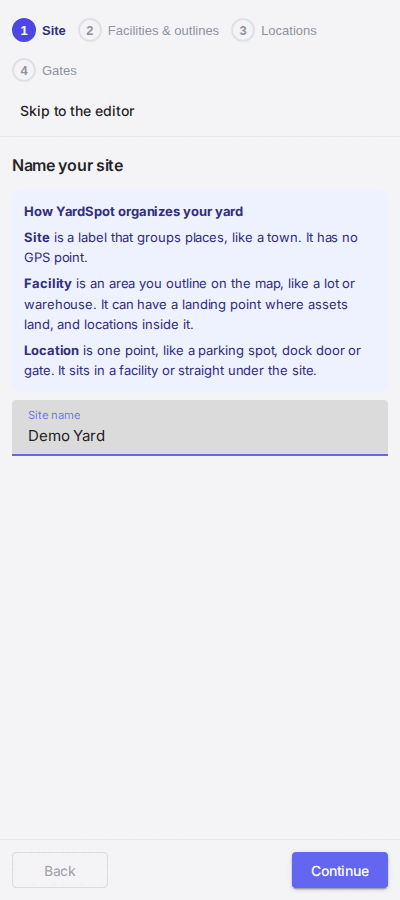
- Site is a label that groups places, like a town. It has no GPS point.
- Facility is an area you outline on the map, like a lot or warehouse. It can have a landing point where assets land, and locations inside it.
- Location is one point, like a parking spot, dock door or gate. It sits in a facility or straight under the site.
Enter the Site name. Continue (the primary button) creates your first site, or renames the one you are working on.
2. Facilities & outlines: "Outline your facilities"
Draw the outline first, then name it, as in Outlines & Facilities. The naming row appears in the wizard body, under the instructions, with ✓ Accept and ✕ Cancel (or Enter and Escape). The step shows Progress, such as "8 of 12 facilities outlined", and lists New facilities you have added in this session. Click one to select it and edit its corners, with Done and Undo in its row. Facilities are created only by drawing an outline, so the progress bar shows how many still need one.
If your site already has data that needs attention, a From your existing data list appears here. See the checklist below.
3. Locations: "Add locations"
Click where a location is, then name it in the row that appears in the wizard body. It belongs to the facility whose outline it lands in. If outlines overlap you choose, and the smallest is suggested. Outside every outline, it sits under the site. See Locations & Pins.
The step lists Added this session, with the parent of each location. If you cancel the pin tool, Drop a pin turns it back on.
4. Gates: "Add your gates"
A gate is a location where trucks check in and out. Place it exactly as you place a location: click where it is, then name it in the row that appears in the wizard body. Its marker is a violet square, so it stands apart from location dots. Any existing location can also be made a gate from its menu. Direction and the data collected at the gate are set in the Gate Editor, which the step links to. See Gates.
The step lists your Gates with where each one is. Choose Finish setup to close the wizard.
The Checklist
The checklist is built from your own data, not from a fixed list. It appears under From your existing data, and its count is the number on the Setup checklist · N to fix button. Outline and facility items show in step 2; gate items show in step 4.
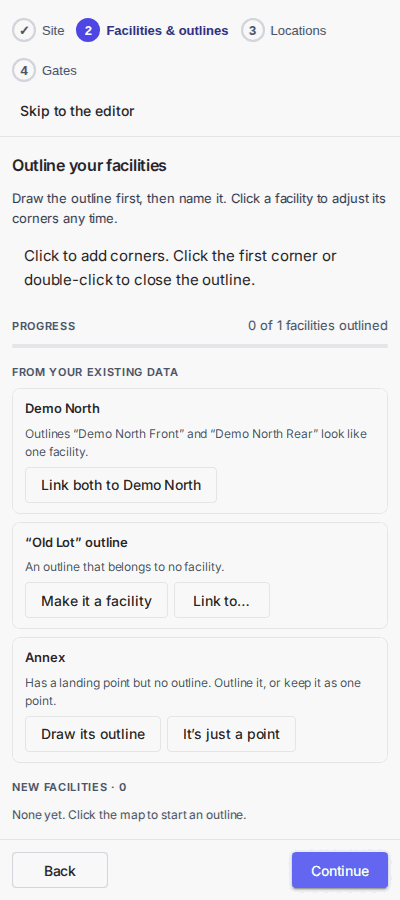
An outline that belongs to no facility
Shown as the outline's label followed by "An outline that belongs to no facility." Older outlines were tied to facilities only by a text label. Resolve it with:
- Make it a facility: creates a facility with the outline's label as its name and links the outline to it. Unavailable when the outline has no label, or when a facility already has that name.
- Link to...: pick an existing facility from the menu and the outline becomes (another part of) that facility.
Outlines that look like one facility
When two or more unlinked outlines share every word of their label except the last, such as "G1 Front" and "G1 Rear", they are offered together: "Outlines "G1 Front" and "G1 Rear" look like one facility." Choose Link both to G1 (or Link all N to G1 for more than two). They become parts of one facility named G1, or parts of the existing facility of that name.
A facility with no outline
Shown as "Has no outline yet." or, when the facility has a landing point, "Has a landing point but no outline. Outline it, or keep it as one point."
- Draw its outline: draw the area and it is attached to this facility. Every facility should have an outline, so this is the item that flags one without it.
- It's just a point: shown only when the facility has a landing point. It turns the facility into a location directly under the site, at the same position.
It's just a point keeps the facility's id, so a gate that already points at it still finds it. It is refused when:
- The facility still has locations. The message reads "Name still has 3 locations. Move or delete them first." Move them with Move to the site, or delete them, then try again.
- A site location with the same name already exists.
- Appointment configuration (opening hours, holidays, categories or slot templates) is keyed to the facility. Yard Spot answers with its usual message about places still in use, and nothing changes. See Deleting & Why It Can Be Refused.
A gate whose location cannot be found
Shown as the gate's name and "Its location "..." can't be found." (or "It has no location."). Use Pick its location to choose the facility or location it belongs at. The gate is updated at once, with its direction and active state unchanged.