How Your Yard Is Organized
The Location Editor is where an Admin describes the yard to Yard Spot: where it is, what areas it has, and which points inside it matter. You do not need to enter everything. Start with what you know, usually the fence line, and add detail as you go.
If you already know your yard's geofence, you are most of the way there. This page explains where that outline fits and how Yard Spot keeps the rest organized around it.
The Hierarchy
Yard Spot uses three levels.
| Level | What it is | Has a map position? | Contains |
|---|---|---|---|
| Site | A label that groups places, like a town or a yard operation. | No. A site has no GPS point and no outline. | Facilities and locations |
| Facility | An area: a lot, a yard, a warehouse. | Yes. An outline and an optional landing point. | Locations |
| Location | One GPS point: a parking spot, a dock door, a gate. | Yes. A single point. | Nothing |
A few things follow from this:
- A site is only a grouping. You cannot draw one or drop a pin on one. It exists so that everything belonging to one yard operation is kept together.
- A facility is the area you draw. Your geofence is a facility outline. Every facility should have one: you create a facility by drawing its outline, and the setup checklist flags any facility that has none.
- A location is a point. It sits under a facility, or directly under the site when it is not inside any facility you have outlined.
- A gate is a location. It sits under a facility or directly under the site like any other location. See Gates.
- Appointments belong to a facility or a location inside one, never to a site. A site has no position, so an appointment cannot be fulfilled "at a site". Customers and carriers book against the facility or location where the work happens.
Site: Chesapeake            (grouping label, no GPS)
├── Facility: Lot G2        (outline + optional landing point)
│   ├── Location: Door 1    (point)
│   └── Location: Door 2    (point)
├── Facility: Back Lot
│   └── Location: Spot 14
└── Site locations
    └── Location: Main Gate (point, gate, not inside any outline)
Geometry First, Then the Name
The usual way is to place things on the map first and name them second. You draw an outline, then name the facility. You drop a pin, then name the location.
You name things in a row that opens in the tree (or in the setup wizard), right where the new item will sit. There is no floating card on the map. The row has a ✓ Accept and a ✕ Cancel button; Enter and Escape do the same. An empty name discards the new item.
Facilities are created only by drawing an outline. There is no way to add a facility by name alone.
Why Outlines and Parents Matter
Yard Spot uses your outlines in two ways:
- Labeling assets. An asset whose GPS position falls inside a facility's outline is shown in that facility. If outlines overlap, the smallest outline that contains the point wins.
- Suggesting a parent for a new pin. When you drop a pin, Yard Spot suggests the facility whose outline contains it, again preferring the smallest. A pin outside every outline is suggested to go under the site.
The suggestion is made when you place the pin, and the parent you confirm is stored. After that, two things can change it, and Yard Spot says so when they do:
- Moving a location or gate re-homes it to the smallest facility whose outline contains its new spot, or to the site when none does. A location under a facility that has no outline yet keeps its facility.
- Drawing a facility around locations that sit directly under the site adopts them into the new facility.
Reshaping an outline never moves anything.
What You Can Provide, and What Is Optional
Every level is optional detail you can add when you have it.
| You know... | Provide it as... |
|---|---|
| The yard's geofence | A facility outline. See Outlines & Facilities. |
| Where trucks usually arrive | The facility's landing point. |
| Specific spots, doors or lanes | Locations, with an optional capacity. See Locations & Pins. |
| Where the gatehouse is | A gate. See Gates. |
An older facility can exist without an outline. It appears in the tree marked no outline, and the setup checklist flags it. Until you draw its outline, Yard Spot cannot use it to label assets by position.
Time Zones
Yard Spot works out each facility's time zone from its position (its own point, or the first
location that has a position), so opening hours entered as 07:00 mean 07:00 on site. A facility
with no position anywhere uses your organization's default time zone.
Using the Editor
Open Location Editor from the main navigation. It requires the Admin role.
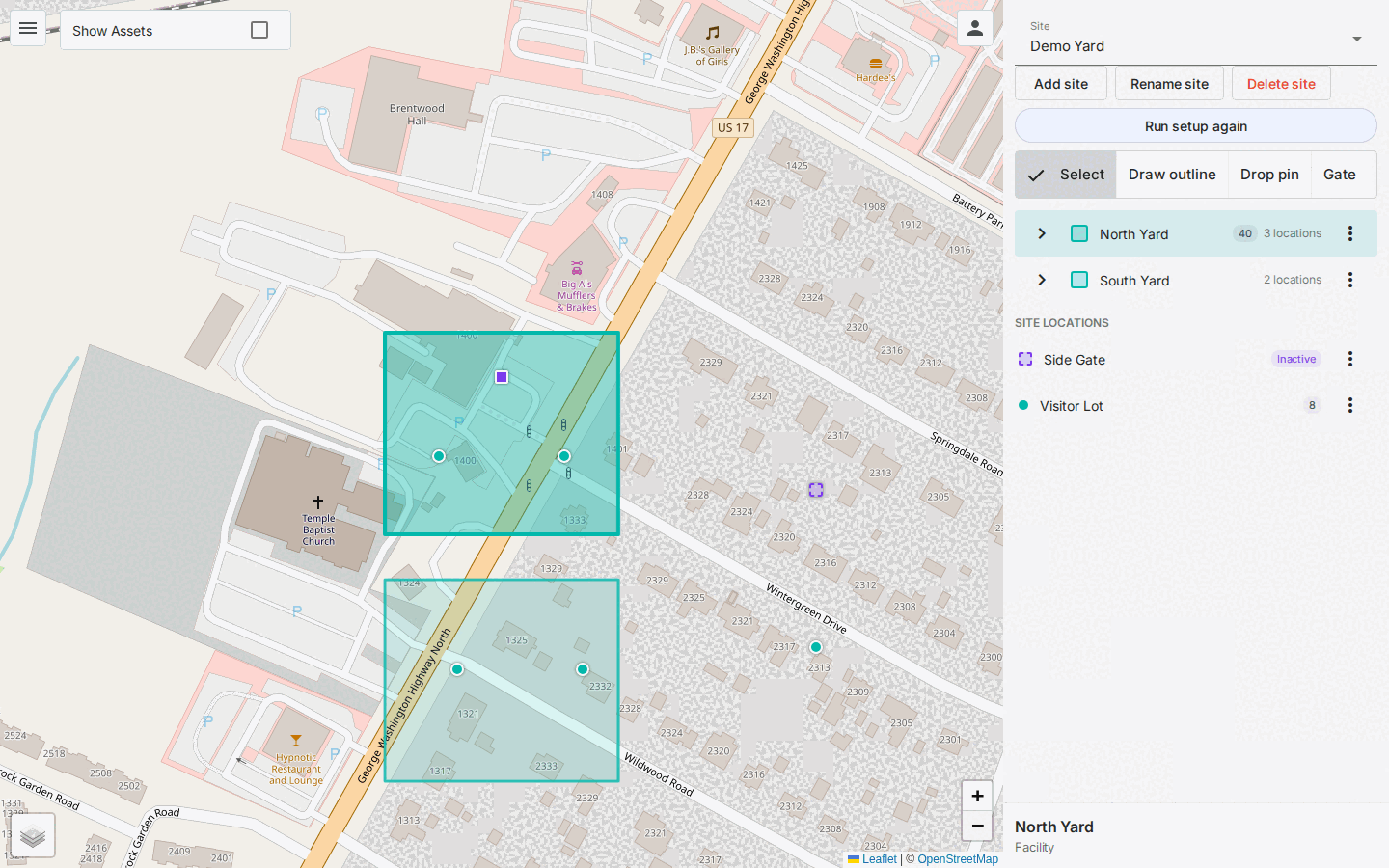
The left-hand panel holds everything:
| Area | What it does |
|---|---|
| Site selector, Add site, Rename site, Delete site | Choose the site you are working on, or manage sites. The editor works on one site at a time. |
| Tool strip: Select, Draw outline, Drop pin, Gate | Choose what a click on the map does. |
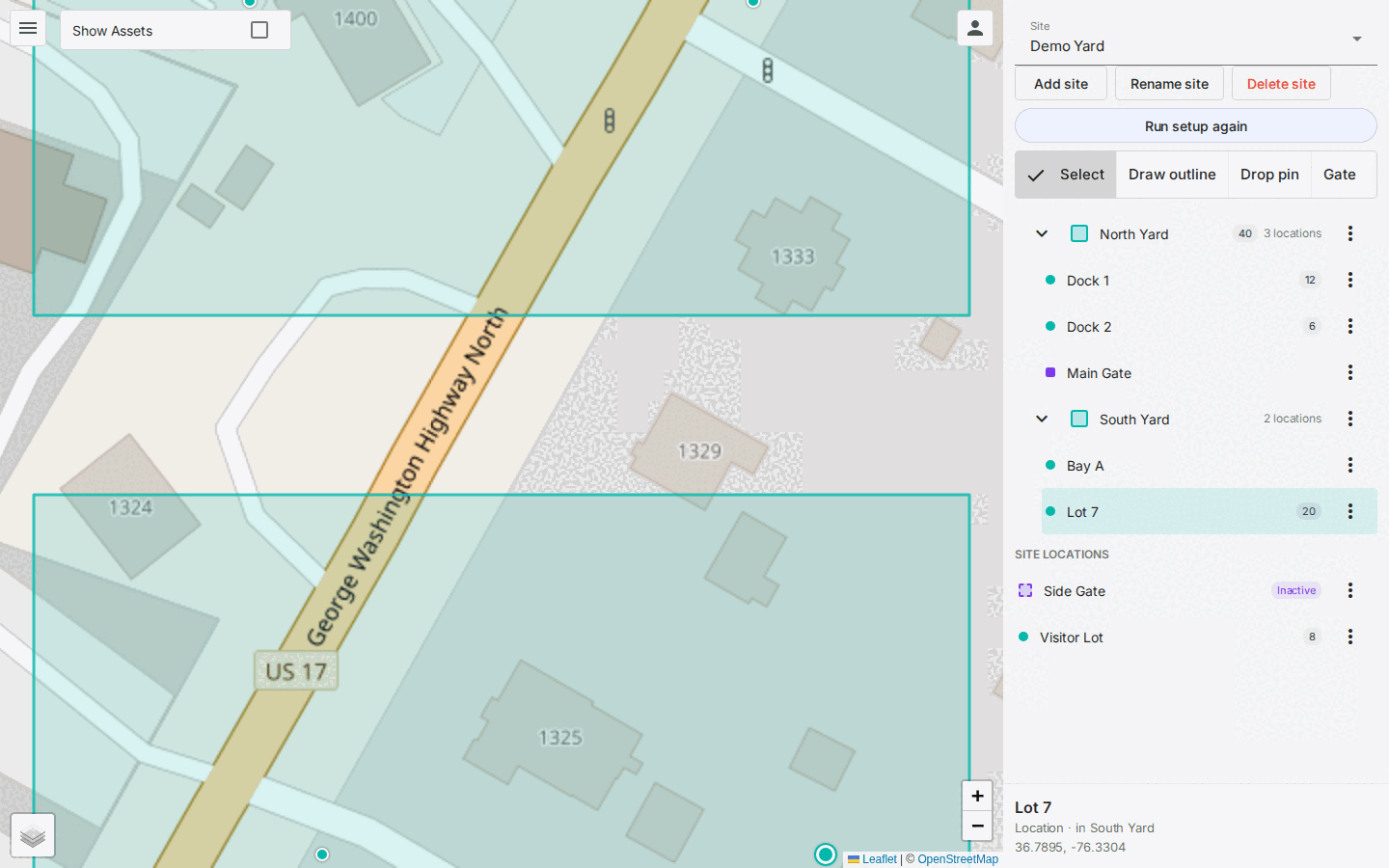
| Tree | The facilities in the site, each expandable to its landing point and locations, then a Site locations section. A small pill shows a place's capacity. |
| Details card | Information about whatever is selected: its name, what kind of place it is and the facility or site it is in, and its coordinates. It has no buttons; actions are in the tree. |
Selecting something on the map selects it in the tree, and selecting it in the tree shows it on the map. Clicking a facility fits its outline in view and lets you edit its corners (see Outlines & Facilities). Clicking a location keeps your zoom and pans only if the location is off-screen.
Colors on the map
| What | Look |
|---|---|
| Outlines and location dots | Teal (#02b8ab). A selected outline is thicker and more filled. |
| Gates | Violet, drawn as a square instead of a dot. An inactive gate stays on the map as a hollow square with a dashed outline. |
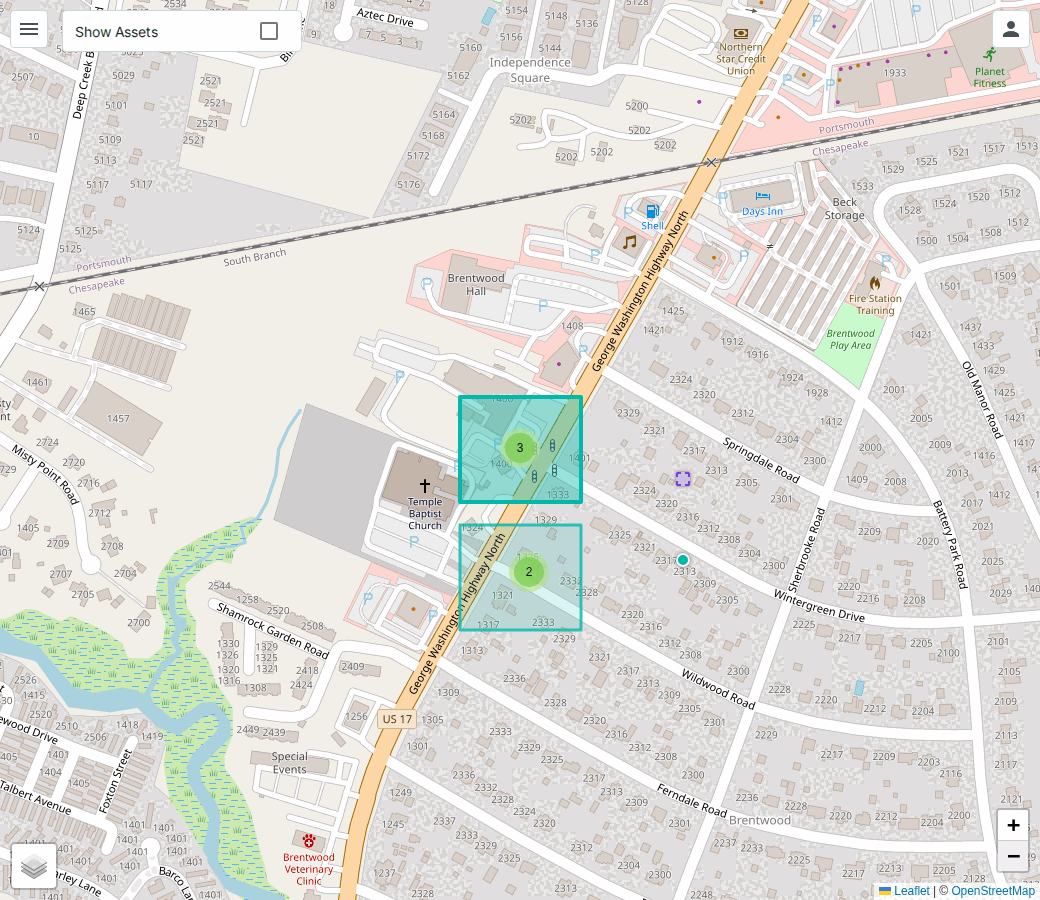
| Many locations close together | When you zoom out, nearby dots group into a count bubble. From zoom level 18 they show individually, and clicking a bubble zooms in. |
| Outlines not linked to a facility | Dashed orange. |
Saved straight away
There is no Save button. Each change is saved as soon as you commit it, which means pressing Enter or ✓ Accept on a name, finishing a corner edit with Done, moving a pin (including dragging it), or deleting. If Yard Spot refuses a change, the message appears at the bottom of the screen. See Deleting & Why It Can Be Refused.
Guided setup
A setup wizard walks you through site, facilities, locations and gates, and a checklist flags anything in your existing data that still needs attention. See Guided Setup & Checklist.